


AI GenerationAI Image Editing Configuration
Configure your model, prompt, and output
Image Preview


Krea3 — Fast AI Photo Editing in Native 2K
Change scenes, materials, and lighting with Krea3 while preserving product details and character identity. Native 2K output and multi-reference editing help turn one creative direction into a coherent set.
Sign in to generate. Each result uses credits; the cost depends on your model and output settings.
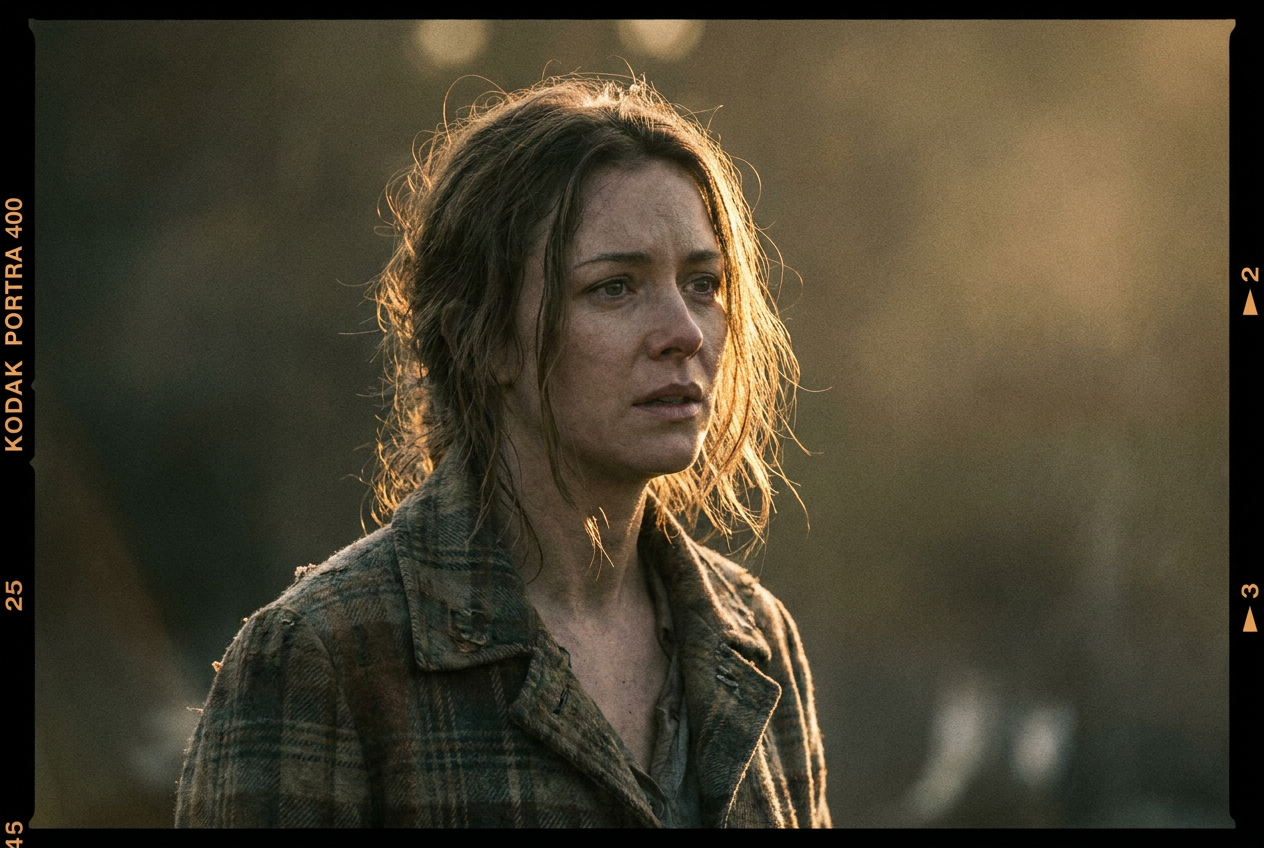
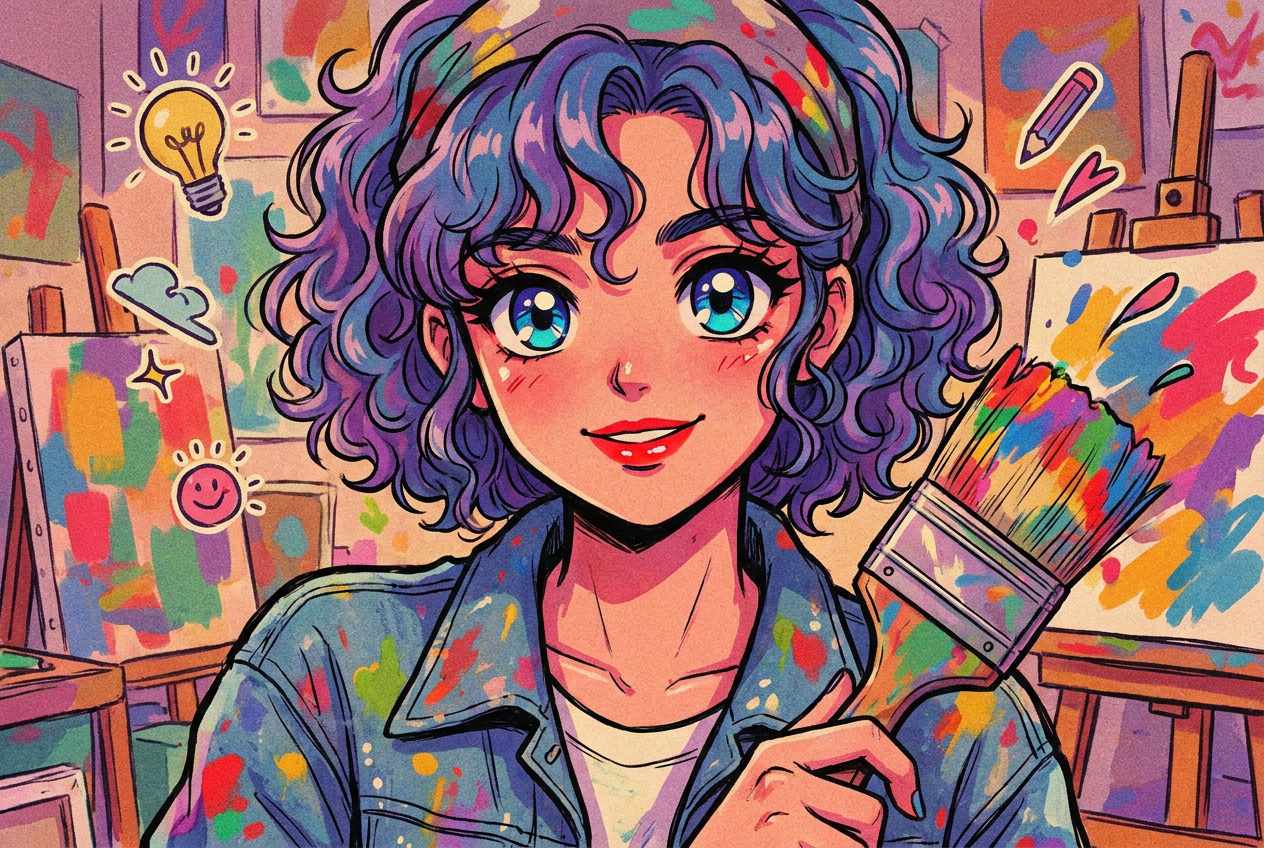
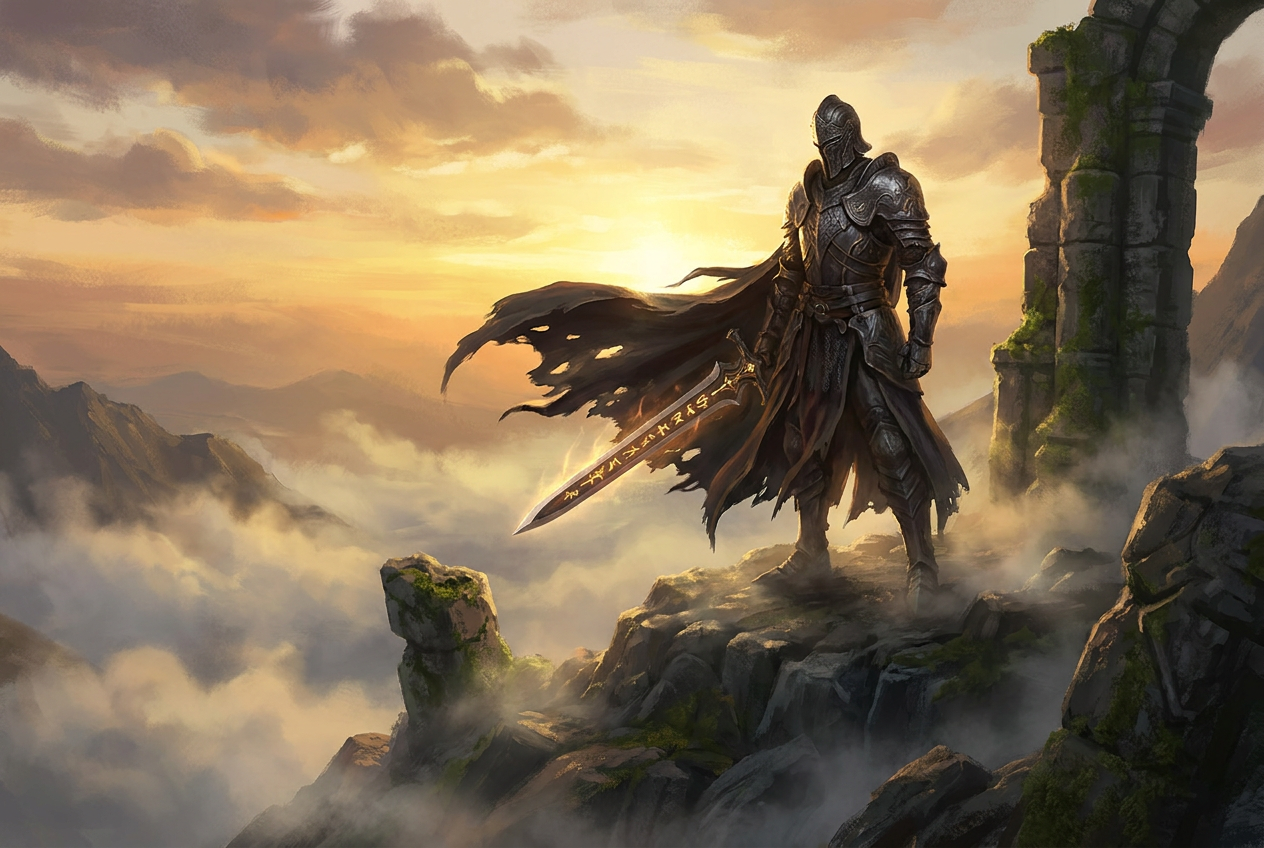
What Can You Create With Krea3?

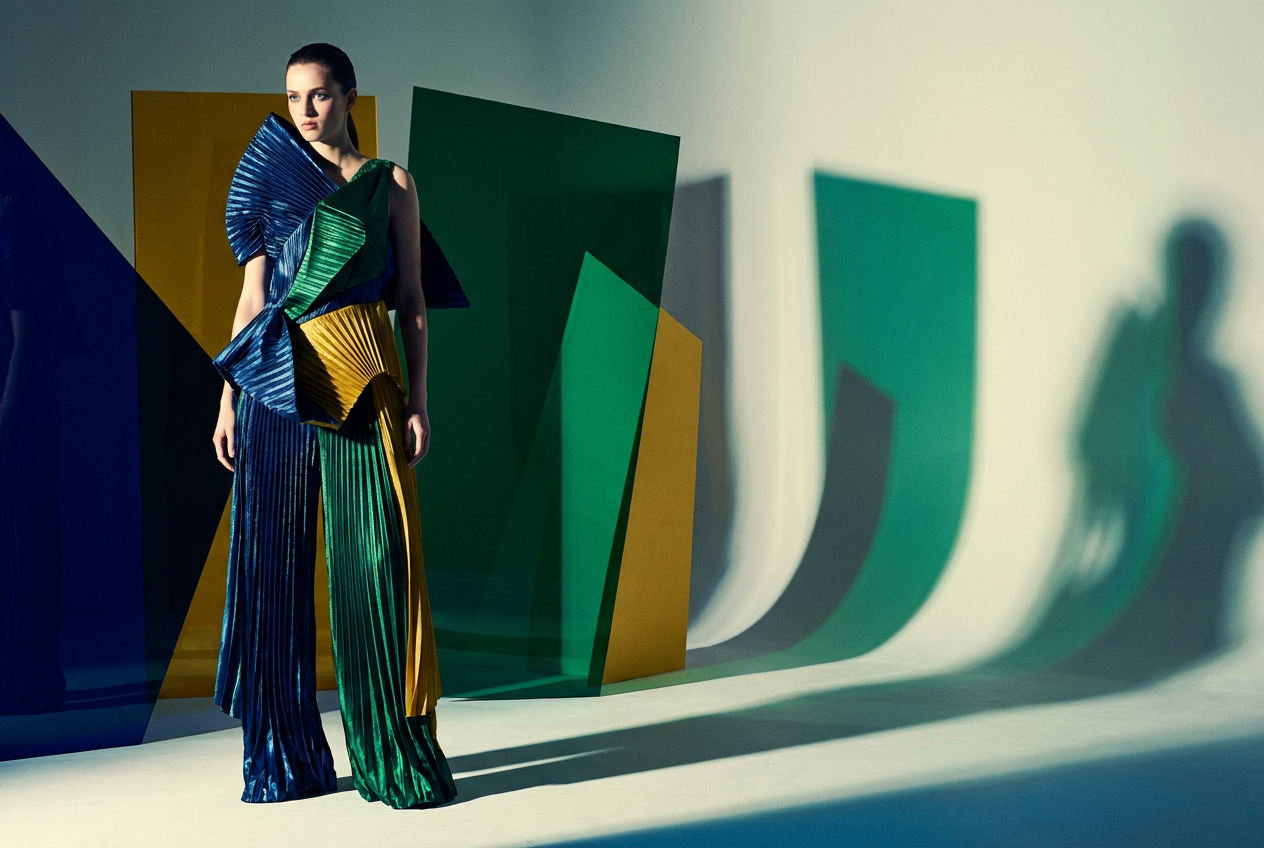
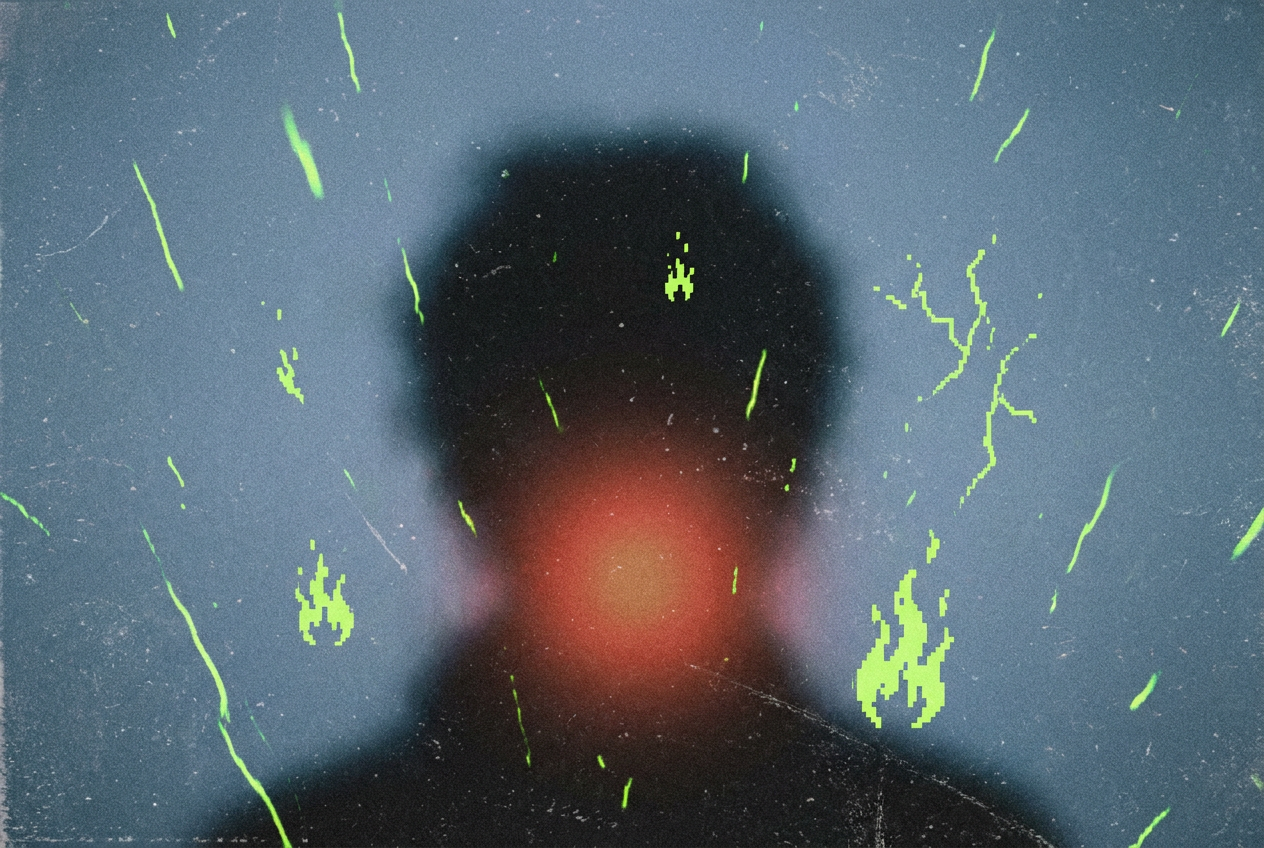
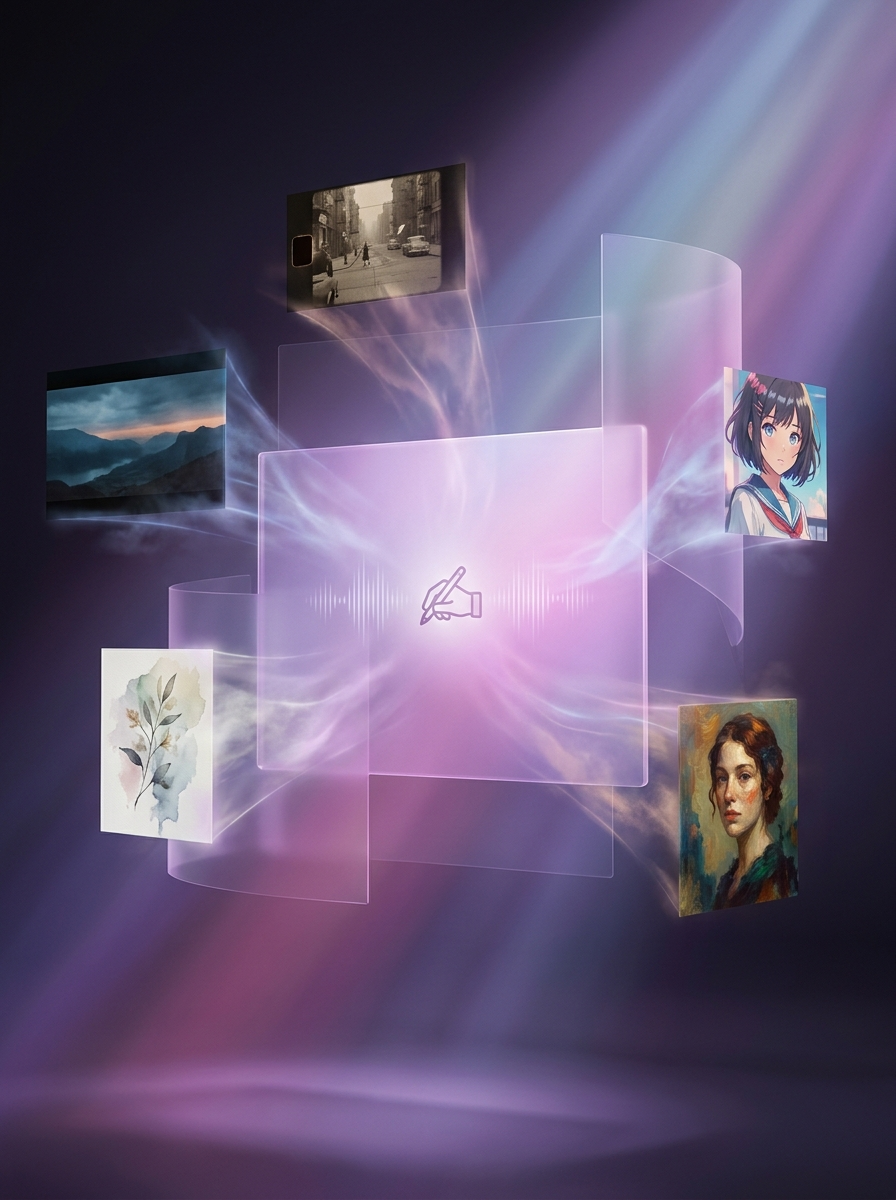
How to Create With Krea3
Start with a product photo, portrait, sketch, or written idea. Krea3 combines your references and instructions into a new composition.
- 1. Describe Your Idea or Upload a PhotoUpload a photo or sketch and add references for the product, person, or style. Explain what each reference contributes; for a new concept, start with text.
- 2. Describe What Changes and What StaysName the details to preserve, then describe the new scene, materials, or lighting. Use a focused instruction for a single change and choose your output settings.
- 3. Review, Refine, and DownloadCheck the preview, including text and small details. Adjust your prompt if needed, generate again, and download the version you want to use.
Why Create With Krea3?
Working on a single project, or creating every week? Choose how you pay, see the generation cost, and know how failed tasks are handled.
Krea3 — Create Without a Subscription
Buy a one-time credit pack for occasional projects, or choose a subscription for ongoing work. Credit packs do not renew automatically, so you can pay for another pack when you need it.
Compare Plans and Credit PacksKrea3 — See the Cost Before You Generate
The editor displays the credits required for your selected model and output settings. Check the cost before submitting a prompt or trying another version, so you can decide whether it fits your remaining balance.
Check Generation CostsKrea3 — Credits Back for Failed Generations
Credits deducted for a generation task are returned automatically once the task is confirmed as failed. A completed result still uses credits if you decide to generate another version. Contact support if a failed task's refund remains unresolved.
Get Help With a Failed TaskExplore the Creative Tools in Krea3
Create and edit in the workspace, then open a dedicated tool for upscaling, cutouts, prompts, or video. Download your result and upload it to the next tool when needed.
Krea3 — AI Image Generator
Start with a text prompt when you need a new product scene, illustration, or social graphic. Describe the subject, setting, and style, then generate without uploading a starting photo.
Start CreatingKrea3 — AI Photo Editor
Have a photo to change? Open the editor, choose Image-to-Image, and describe edits to the background, outfit, lighting, or objects. State which details should stay unchanged and review the result.
Open the Photo EditorKrea3 — AI Image Upscaler
Need a larger visual for a product page or layout? Upload your file and choose a 2K, 4K, or 8K target. Export as JPEG, PNG, or WebP and check the enlarged details before use.
Upscale a PhotoKrea3 — AI Background Remover
Need a cutout instead of a new scene? Isolate the subject from its background and download a transparent PNG for product listings, presentations, or a new design.
Remove a BackgroundKrea3 — Image to Prompt Generator
Have a reference but do not know how to describe it? Convert it into a text prompt you can edit for your next generation. It describes visible content; it does not recover the original prompt.
Extract a PromptKrea3 — Image to Video Generator
Want to add motion to a finished composition? Upload it in the video generator and describe what should move. Video models have their own duration, resolution, and credit settings.
Animate a PhotoKrea3 — Simple, Transparent Pricing
Choose the perfect plan for your creative needs.
Free
Perfect for trying our Krea3 image generator
- 16 starter credits for new accounts
- Up to 5 images at 3 credits each; fewer with higher-cost settings
- Standard Quality Images
Great for exploring!
Professional
For serious creators who need professional features
- 500 credits per month
- Up to 166 High quality AI image generations per month
- Up to 50 AI video generations per month
- Advanced Quality
- Every image you generate is 100% watermark-free
- Commercial use license
✓ Cancel anytime — no questions asked
Enterprise
For studios and teams creating at scale
- 5000 credits per month
- Up to 1666 High quality AI image generations per month
- Up to 500 AI video generations per month
- Advanced Quality
- Every image you generate is 100% watermark-free
- Commercial use license
✓ Cancel anytime — no questions asked
Model credit costs
With a reference video, credits are charged on output duration plus the total reference-video duration.
Krea3 — Questions Before You Create
How the workflow works, which settings to choose, and what to check before spending credits.
What is Krea3?
Krea3 is an AI model for creating and editing visuals. It combines text instructions with references to change scenes, materials, and lighting while maintaining product and character consistency, with native 2K output.
Can I change a background while keeping the product?
Upload a clear product photo in Krea3 and describe the new scene. Specify the packaging, label, colors, and camera angle to keep. Review the result closely: small text and product details can change during generation.
How fast is Krea3?
Krea3's published performance reports most edits in under 8 seconds at native 2K. Timing varies with the request, settings, and service load; this is a typical result, not a deadline for every edit.
How do I create from a prompt or edit a photo?
Sign in and choose Text-to-Image to create from a prompt or Image-to-Image for a photo edit. Enter a prompt, upload references if needed, select a model and output settings, and check the credit cost. Generate, review the preview, and download your result.
Can Krea3 edit a photo I already have?
Yes. Choose Image-to-Image, upload your photo, and describe the change you want. For example: replace the background with a sunlit studio while keeping the product, label, and camera angle unchanged.
How do I write a good Krea3 prompt?
Start with what must stay, such as a face, label, or room layout. Then describe the change, including lighting and camera angle. Give each reference a clear role and use “only” for a focused edit.
Can I keep the same character or product across variations?
Yes. Krea3 uses references to carry recognizable faces, outfits, and products across different poses and settings. Reuse the same references for a series and compare fine details before approving the final set.
What resolution and references does Krea3 support?
Krea3 supports native 2K output and multiple references for people, products, scenes, or style. Give each reference a role in your prompt. The reference limit depends on the service; upscaling is a separate step for larger exports.
Is Krea3 free to try?
New accounts receive 16 starter credits. Generating a result spends credits, and the cost varies by model and resolution; this is not unlimited free generation or a monthly free-credit allowance. Check your balance and the displayed cost before generating. Paid plans and one-time credit packs are available.
Can I create posters with readable text?
Include the exact words in quotation marks and describe where they should appear. Keep important copy short and give it space in the layout. Check spelling, numbers, and small labels at full size before publishing.
Why is the pose or background from my reference appearing again?
A reference may influence more than the detail you intended. Explain which parts to borrow and which to change. Try fewer references with one clear instruction, then compare the next result. This can guide the edit, but does not guarantee precise control.
Can I use my creations for commercial projects?
Paid plans include the commercial-use benefit described in Pricing. You must also have permission to use any uploaded photos, logos, or other protected material. Review the Terms of Service and your final work before publishing.
Krea3 — What Do You Want to Create?
Bring a product photo, character, or sketch to Krea3. Describe the next scene, refine the materials or light, and build on the result.
Get in Touch
Have feedback, questions, or suggestions about Krea3? We would love to hear from you.